Winter 2027 LockDown Browser LaunchImportant: LockDown Browser will be enabled in onQ/SmithLearning on November 9th to allow instructors to set up and test quizzes for Winter 2027 courses. Instructors are reminded to add information about LockDown Browser to their course syllabus, so students are aware of the requirement before the course begins. LockDown Browser must not be used for student assessments during the Fall 2026 Term, as its use was not communicated to students in Fall course syllabi. LockDown Browser may only be used for student assessments beginning January 4, 2027, when the Winter Term officially begins. |
What is LockDown Browser?
LockDown Browser is a secure browser that is intended to support in-person, proctored, computer-based assessments created as an onQ/Smith Learning quiz.
When enabled for a quiz, test, or exam in onQ, LockDown Browser can:
- Restrict access to other websites and applications.
- Prevent copying and printing.
- Restrict access to other computer functions during an assessment.
- Require students to complete the assessment using a secure browser.
The LockDown browser does not provide remote proctoring or support computer-based assessments conducted with other software outside of onQ/SmithLearning quizzes (e.g., Office 365 applications, etc.) or other integrated LTI assessment tools (e.g., Feedback Fruits, H5P, etc.).
Important Considerations:
It is important to communicate LockDown Browser requirements to students in your syllabus and before a quiz, including a link to the Respondus LockDown Browser Privacy Policy, supported device requirements, accessibility information, whether students can opt out or complete an alternative form of the assessment, how to access the quiz, and what to do if they experience technical difficulties.
LockDown Browser is not remote proctoring:
LockDown Browser and Respondus Monitor are different products. Queen's has access to LockDown Browser only. LockDown Browser can restrict what a student does on the computer running the assessment, but it cannot determine what is occurring elsewhere in the student's environment. For this reason, its intended use is an in-person, proctored assessment tool rather than an academic integrity assurance mechanism for remote online assessments.
Accommodated Assessments
The Exams Office does not currently support accommodated LockDown Browser exams directly.
For midterms, instructors using LockDown Browser must either manage accommodated students within the course or provide the Exams Office with a paper-based version of the exam for accommodated students, and advise those students accordingly.
For final exams, instructors wishing to use LockDown Browser must administer the exam privately, including all accommodation arrangements.
For more details, please visit the Service Page
Pedagogical considerations and use cases
Before enabling LockDown Browser, instructors should first consider what restriction is necessary for the assessment to validly measure its intended learning outcomes.
LockDown Browser may be useful where independent recall, reasoning, calculation, or application under controlled conditions is an intentional component of the assessment. It should not be used simply because an assessment is delivered digitally or as a default setting for all quizzes.
Consider whether an alternative assessment design could accomplish the same goal without restricting students' devices. Assessments emphasizing application, analysis, interpretation, synthesis, authentic problem-solving, or explanation of reasoning may permit broader access to resources while still providing meaningful evidence of learning.
Use of LockDown Browser should not be represented to students as guaranteeing academic integrity. Academic integrity is supported through a combination of assessment design, clear expectations, appropriate supervision, technological controls where warranted and established academic integrity processes.
Additional considerations when requiring the use of LockDown Browser include the following:
- Communicate the requirement in the syllabus and again before the assessment.
- Provide students with information about privacy, supported devices, accessibility, and applicable alternative arrangements.
- Create and test the assessment in LockDown Browser before the scheduled assessment.
- Have students complete a practice quiz well in advance so they can install the software and resolve technical issues.
- Establish a contingency for students who experience technical difficulties.
- Ensure students know where to access technical support before and during the assessment.
Assessment use cases
| Assessment | Fit | Key Considerations |
|---|---|---|
| In-person, invigilated onQ/SmithLearning quiz or exam | Yes - primary use case | Appropriate where students are completing a closed-book/closed-resource assessment on their own devices or supported computers. |
| Secure midterm or final exam delivered through onQ/SmithLearning | Potentially | Requires advance communication, a practice quiz, technical planning, and arrangements for students unable to use LockDown Browser. Suitable only for in-person, invigilated private midterms and final exams. Not presently supported by the Exams Office or ITSC. |
| Low-stakes, in-person onQ/SmithLearning quiz | Sometimes | Consider whether the additional technological restriction is proportionate to the stakes and purpose of the assessment. |
| Open-book/open-resource assessment | Sometimes | If students are expected to broadly consult digital resources, LockDown Browser may conflict with the intended assessment design. If only a few, specific, web-based resources are to be consulted, those can usually be whitelisted within Respondus LockDown Browser. |
| Assessment requiring Word, Excel, coding software, specialized applications, external websites, H5P, FeedbackFruits or other assessment tools | Not appropriate | LockDown Browser is designed around onQ/SmithLearning quizzes and may prevent access to required applications or resources. |
| Remote/unproctored online exam | Not recommended as an academic integrity measure | Without remote proctoring or human invigilation, LockDown Browser does not monitor the student's environment or prevent access to another device, notes, or assistance. |
| Take-home assessment | Generally not appropriate | Authentic, open-resource or application-oriented assessment design is normally better aligned with this context. |
Instructors should consider accessibility and equitable participation when planning an assessment requiring LockDown Browser. Students should receive sufficient advance notice to understand the technical requirements and identify potential barriers. Instructors should ensure that approved academic accommodations can be implemented and should establish an appropriate arrangement where a student's accommodation, technology, or other recognized circumstance prevents use of LockDown Browser.
Please consider adding the following privacy statement to share with students:
This test requires the user of a browser lockdown application that may restrict access to other applications, websites, and certain device functions while an exam is in process. Before processing, you must review the application's Privacy Policy and related university policy notices to understand what information may be collected from you, how it is used, how long it is retained, and with whom it may be shared.
Student Acknowledgement
By selecting "I Agree" and continuing you, you acknowledge that:
- You have read and understood the applicable Privacy Policy and related institutional privacy information.
- You understand your privacy rights, including any rights to access, correct, or inquire about your personal information, subject to applicable laws and university policies.
- You understand the functionality and limitations of the browser lockdown application.
- You have had opportunity to ask questions or seek clarification before using the application.
- You voluntarily choose to proceed with the assessment using the required software.
I have read the [vendor] Privacy Policy, understand my privacy rights, and agree to use the browser lockdown application for this assessment."
Student Guidance:
For most issues, the instructor should be your first point of contact. For example, if you have questions about the exam schedule, content/format, or if you can't see the exam to access it.
If technical issues arise during an assessment, you should try to enter the exam again, as quickly as possible. If there is time remaining, you may be able to re-enter, and continue where you left off. If you are still experiencing problems, make a note of any error messages, what you clicked on, etc. and contact your instructor immediately as they will determine the next appropriate steps.
Use of Respondus LockDown Browser
This course may use Respondus LockDown Browser for specified quizzes, tests, and/or examinations delivered through onQ/SmithLearning. LockDown Browser is a secure browser that restricts access to other applications, websites, files, and certain computer functions while an assessment is in progress.
Queen's University does not use Respondus Monitor with LockDown Browser in this course. LockDown Browser does not use your webcam to record you or provide remote video proctoring.
If an assessment requires LockDown Browser, you will be notified in advance and provided with instructions for installing and testing the software. You will be asked to complete a practice quiz before the first graded assessment that uses LockDown Browser so that you can confirm that the software works correctly on your device.
Information about supported devices, accessibility, privacy, and technical requirements is available at Queen's LockDown Browser Service Page. Respondus' privacy information is available at Respondus Privacy Policy.
If you have an approved academic accommodation that affects your ability to use LockDown Browser, or if you encounter a barrier to using the required technology, please contact [instructor/course contact] as early as possible so that an appropriate arrangement can be made.
If you experience a technical problem before or during an assessment, follow the technical support instructions provided for the assessment. Do not wait until the assessment begins to install or test LockDown Browser.
For each assessment requiring LockDown Browser, the instructor will provide advance information about the assessment conditions, including permitted materials or resources and any alternative arrangements that may apply.
Short Syllabus Statement:
Respondus LockDown Browser: Some computer-based assessments in this course will require Respondus LockDown Browser, which restricts access to other applications, websites, and computer functions while an onQ/SmithLearning assessment is in progress. Queen's does not use Respondus Monitor, and LockDown Browser does not provide webcam-based remote proctoring. Students will receive advance notice, installation instructions, and access to a practice quiz before their first assessment requiring LockDown Browser. Please review the Service Page for technical requirements, accessibility and privacy information, and contact [course contact] as early as possible if you require an alternative arrangement or encounter a barrier to using the technology.
- Create your quiz as usual.
- Once the quiz has been created, navigate to the Manage Quizzes page and click the LockDown Browser tab.
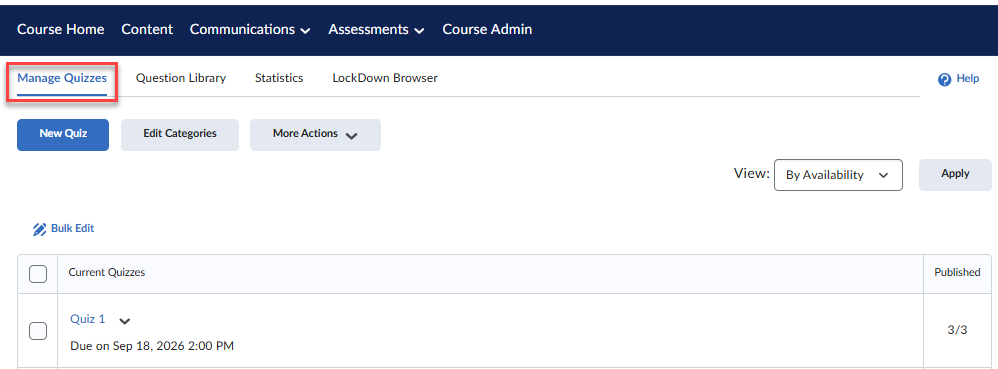
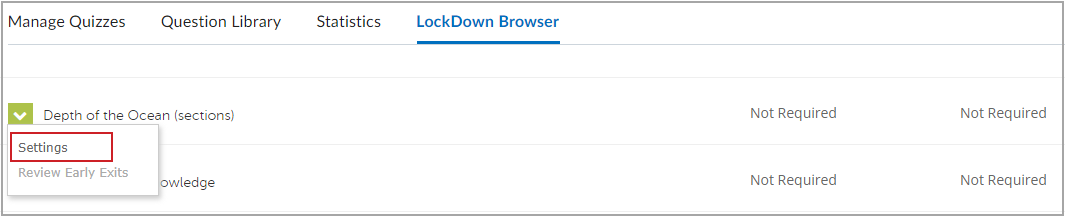
- A list of all quizzes in the course will be displayed. Click the dropdown arrow to the left of the quiz you wish to enable LockDown Browser and select Settings.
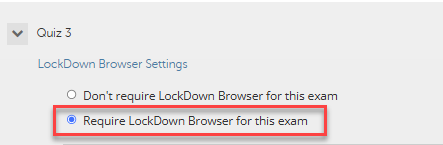
- Choose Require Lockdown Browser for this exam option.
An image showing all the advance setting options available to configure for LockDown Browser
- Click Advanced Settings:
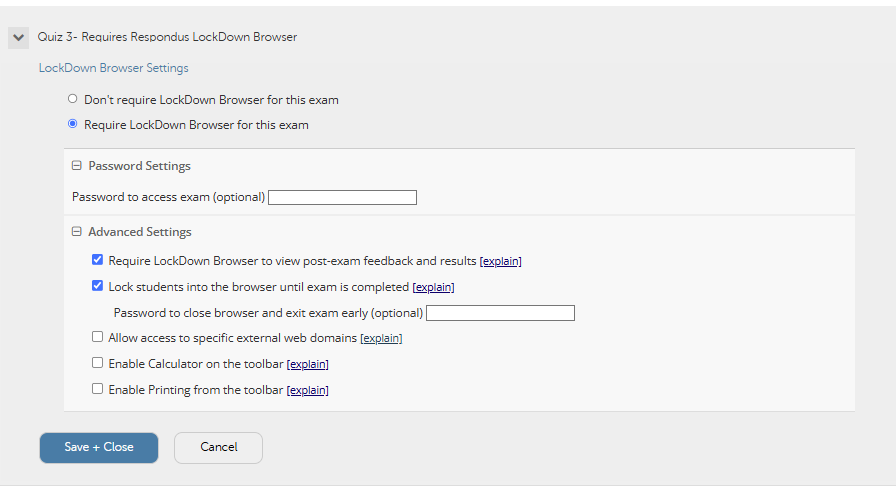
Select Require LockDown Browser to view post-exam feedback and results
Select Lock students into the browser until exam is completed
Optional:
Allow access to specific external web domains. This option allows you to enter a top level domain students can access, such as www.queensu.ca. Students will be able to access any page on that domain during the lockdown quiz. After the domain is added, the link for students can be added to a quiz question or description area.
Enable Calculator on the toolbar (optional)
Enable Printing from the toolbar (optional)
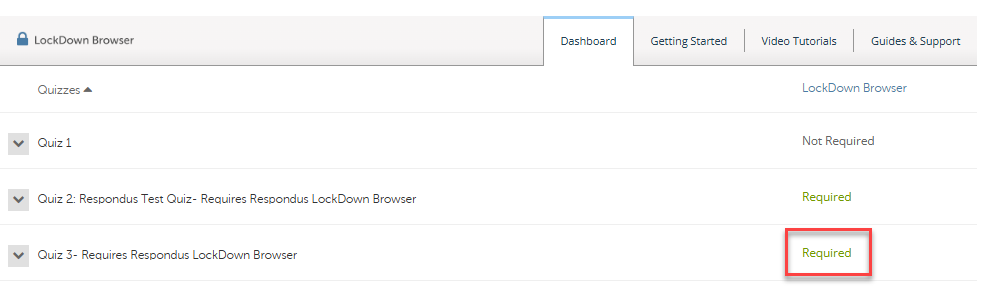
Click Save+Close - When you save the quiz with the Respondus LockDown settings applied, the name of the quiz is appended to include Requires Respondus LockDown Browser, and the LockDown Browser column displays Required.