
What is LockDown Browser?
LockDown Browser is a locked browser for use with online quizzes in your courses. It prevents you from printing, copying, going to another URL, or accessing other applications during an online quiz. If a quiz requires that LockDown Browser be used, you will not be able to take the quiz with a standard web browser.
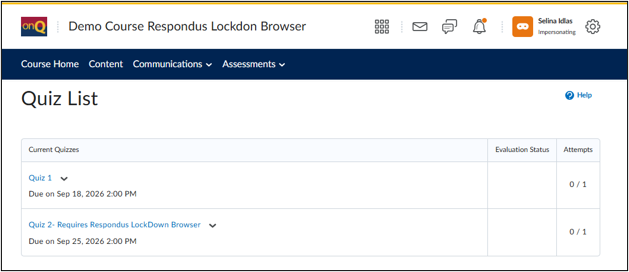
- Access your course in onQ/SmithLearning and select Quizzes on the Navbar.
- Select the quiz assigned by your instructor.
- If LockDown Browser is not installed, onQ/SmithLearning will display a download message and button.
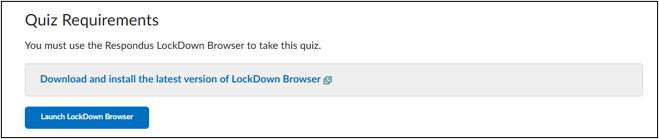
- Click Download and install the latest version of LockDown Browser and follow the installation steps for your operating system.
- After installation, click the Launch LockDown Browser button.
- The browser opens in a secure full-screen environment.
- You are now ready to start your assessment.