
 Housing & Ancillary Services Portal
ResNet Setup Guide
ResNet system requirements
Queen's Residences provides ResNet internet access to your residence room. All you need is a personal computer with an Ethernet network adapter.
- You may install your own password-protected wireless router on your ResNet Ethernet connection. In many buildings a router is required for Wi-Fi in your bedroom; in buildings with Wi-Fi, you'll still need one to connect multiple devices. Check your building's page for details.
- Queen's Residences does not provide or sell routers.
- Wi-Fi extenders, cable modems and other networking devices are not supported and will not work with ResNet.
- A router that interferes with other students' or campus systems will be removed from ResNet.
To connect to ResNet you must have:
- A Windows or macOS computer with a currently supported operating system.
- An Ethernet-compatible network interface, either built in or connected by USB.
- An Ethernet cable to plug into the wall jack. Most wireless routers include one; otherwise you'll need to buy one.
If you want Wi-Fi, you'll need to install your own wireless router on your ResNet Ethernet connection.
Buying your router
- Invest in quality. Avoid the absolute cheapest options on the shelf. A reliable router means a stable connection for studying, gaming and streaming.
- Buy new, not used. Older or second-hand routers often lack current security protocols and will struggle to keep up with modern network speeds.
- Recommended brands. For the best experience, look for trusted names like ASUS, Netgear or Linksys.
- Skip the mesh. Mesh networks are designed for large, multi-storey homes and aren't useful or effective in student housing. Stick to a standard single-point router.
- Where to shop. You can pick up a great router locally or online from stores like Staples, Canada Computers and Best Buy.
Pre-arrival checklist: do this at home
Your router
- Test the power. Unbox and boot up your router at home before bringing it to campus to make sure it actually turns on and works.
- Update the firmware. Run all available system and security updates while you're still on your home network so your device is safe and ready to go on day one.
- Configure for DHCP. Make sure your router's internet connection type is set to DHCP (often called Automatic IP). Do not set it to a static IP, or it will fail to connect to the campus network.
Your computer
- Update and secure your operating system. You're responsible for all network traffic on your Ethernet connection.
- Collect your installation media. Keep the installation files and licence keys for your operating system and any critical applications, in case you ever need to reinstall.
Testing your connection on campus
Once you're plugged in on campus, you can check that your network is running smoothly.
- Check your speeds. Use a tool like Speedtest.net to check your upload and download speeds. Download speed determines how fast you can stream and browse; upload speed matters for submitting large assignments and video calls.
- Find your IP. If you ever need to identify your network for troubleshooting, searching "What is my IP" on Google will show your current public IP address.
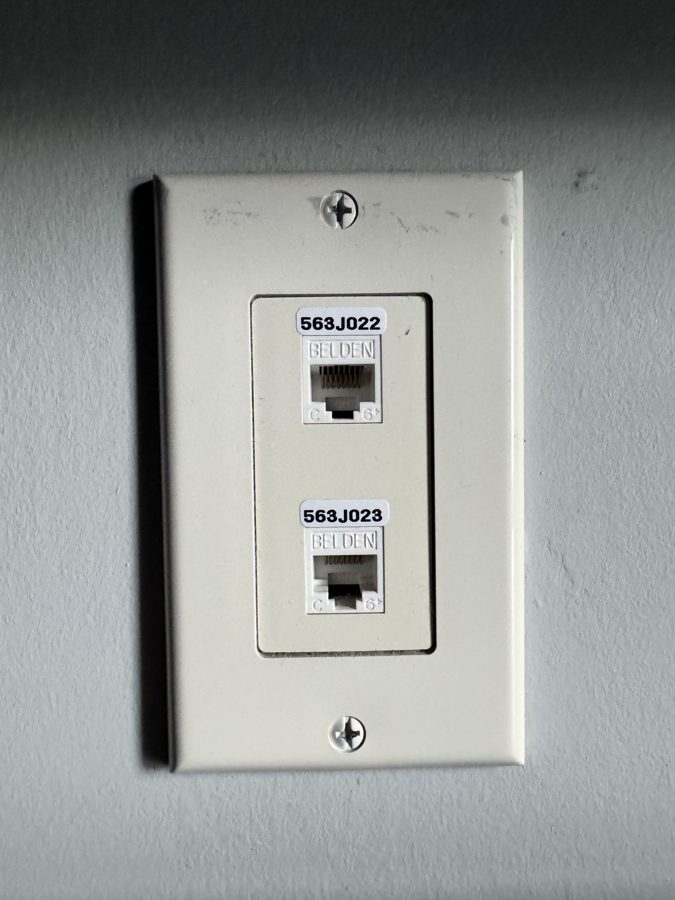
Finding the network jack in your room
Plug in here
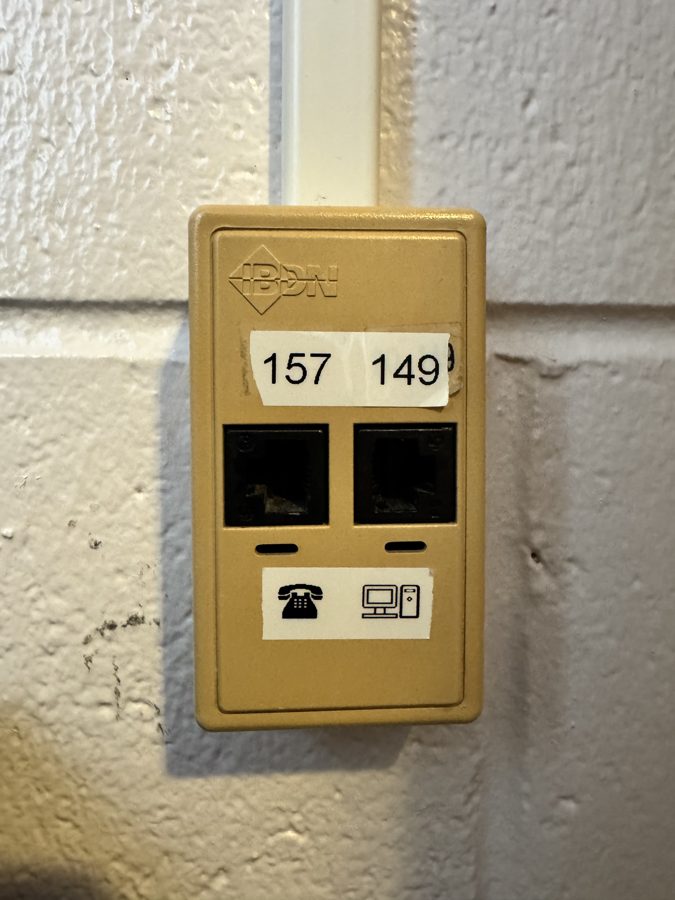
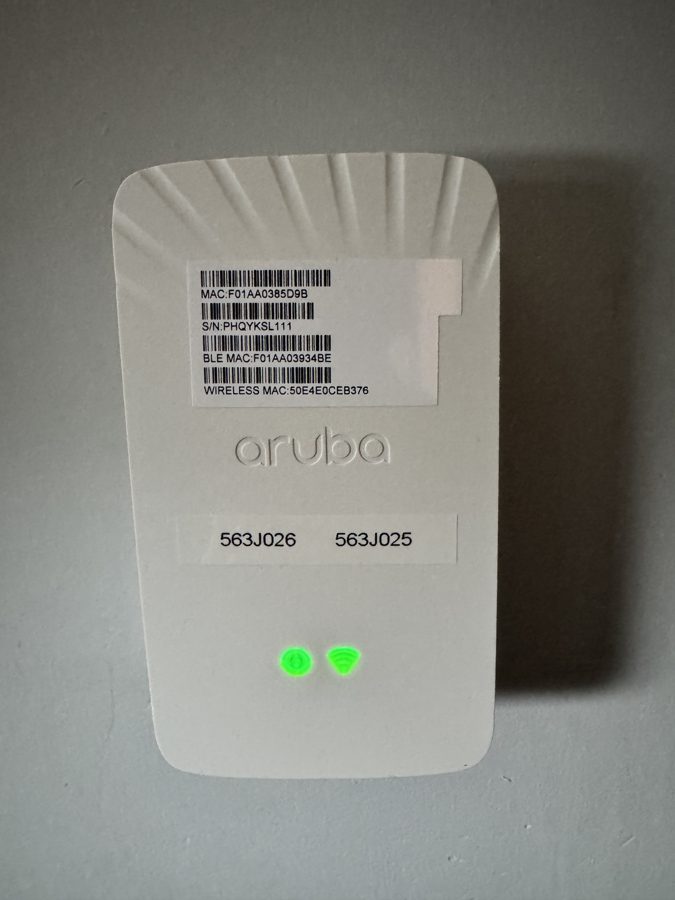
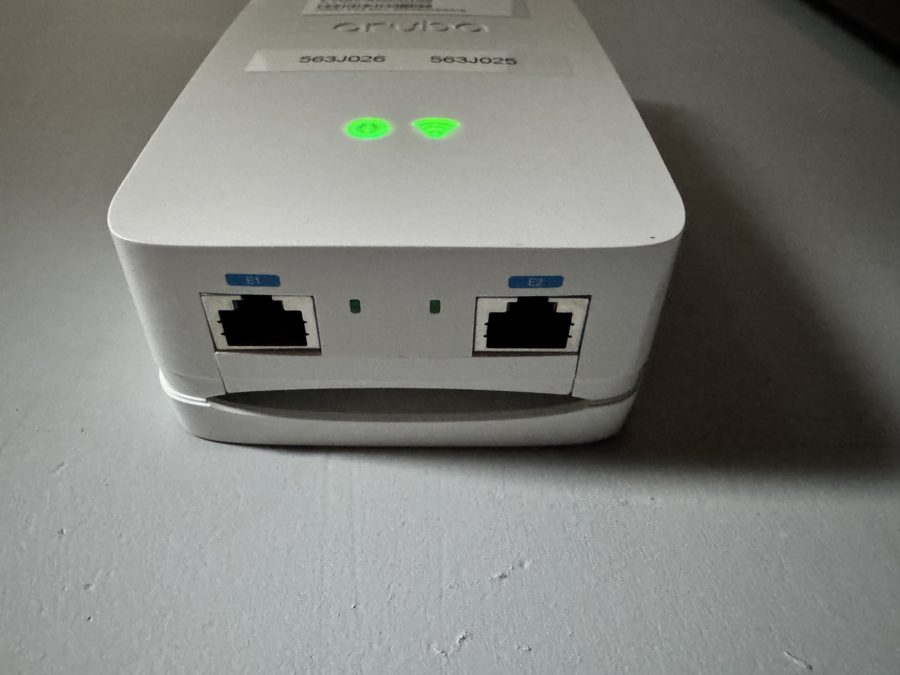
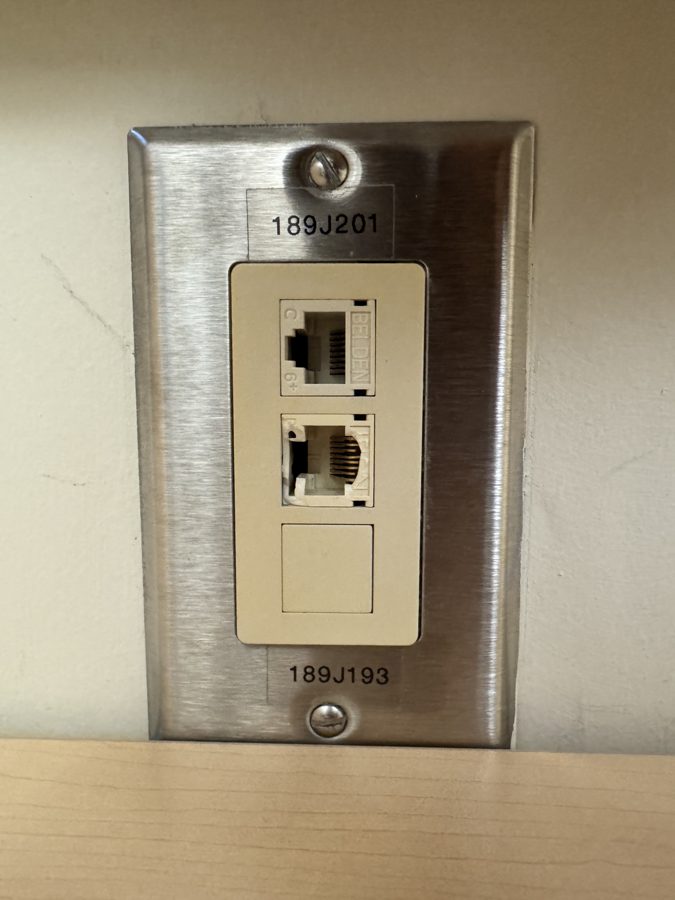
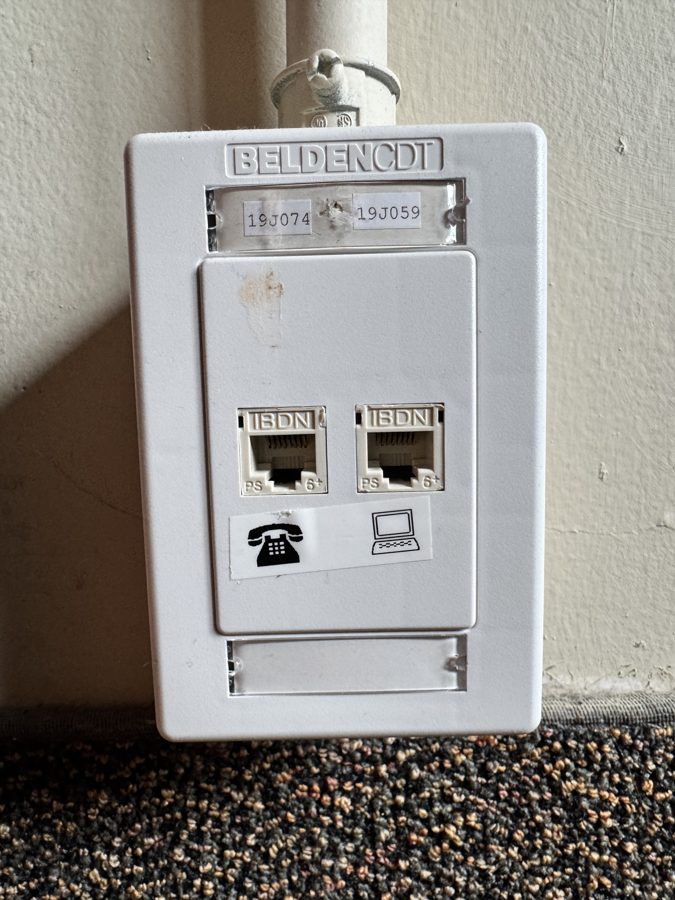
Don't plug in here
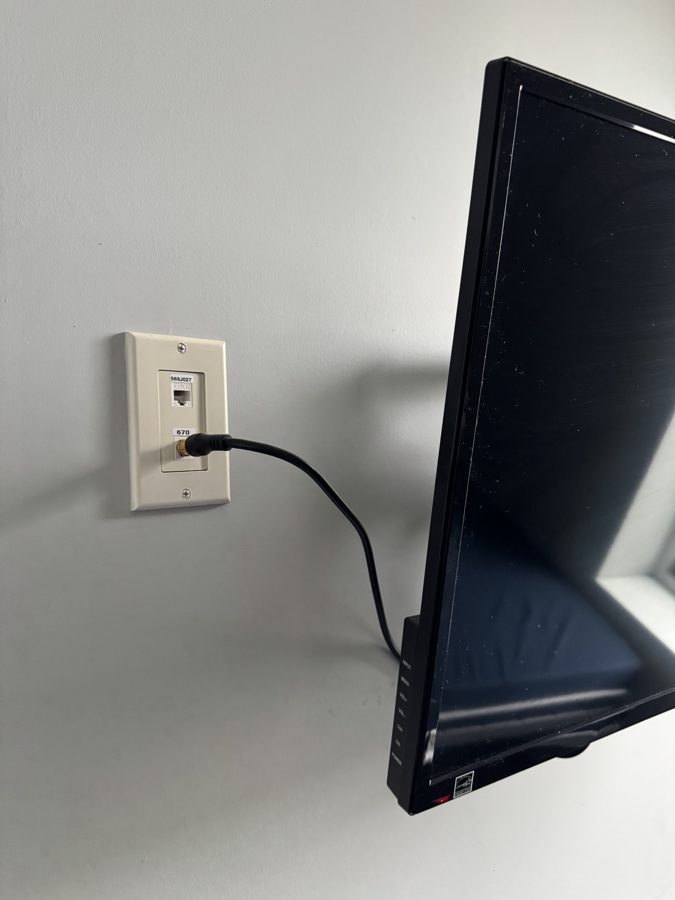
Need help getting connected?
The Residence IT team will be available for hands-on assistance with router setup at stations in Victoria Hall, and Jean Royce Hall:
- Saturday, September 5, 9 am–5 pm
If you have a problem with your computer or ResNet connection, please call the IT Support Centre at (613) 533-6666. IT Services can assist you with questions concerning your student network identity (NetID), available software (including Microsoft Office), accessing SOLUS, accessing course material via OnQ, Internet services, and router support.
The ITSC is available during move-in weekend from 8:30 am – 4:30 pm, Saturday – Monday. They can assist you over the phone or direct you to book an in-person appointment with one of our ResNet technicians.
Where to find WiFi on-campus
- Wireless access is generally not provided in residence rooms (with the exception of Endaayaan – Tkanónsote, Smith & Brant Houses).
- Several common areas across campus have WiFi connection.
ResNet Speed & Bandwidth Limitations
Sharing large files over the internet using a P2P (peer-to-peer) network architecture is strongly discouraged. Online gaming platforms use P2P for downloading games between users. ResNet bandwidth is limited, and these activities will impact your ability to access other resources. The content of your ResNet activity is private, but the amount of your activity is closely monitored. You can be disconnected for overuse.
Several mechanisms are in place to ensure optimal performance of the ResNet network for educational purposes.
Inappropriate Use of ResNet
You are responsible for what you do and what others may do if they gain access to your computer in person or over the network. You must ensure that the operating system on your computer is secure against intruders who might use it to store and distribute illegal software.
- Do not leave your computer on unless you are using it, and don’t allow someone else to use it unless you are present.
- Do not run any sort of server software unless you are familiar with the security issues involved, and do not download or run software from a source that you don’t completely trust.
- Spam, denial of service attacks and harassment in any form is not acceptable and is often illegal.
- Copyright infringement is illegal and will be treated as such, even if “everyone is doing it.”
- Repercussions for violations of responsible use could terminate your connection, account, and/or computing privileges. The length of time will depend on the nature of the offence.
- You will be held responsible for your computer’s contents and actions originating from your computer.
Need help?
If you have a problem with your computer or ResNet connection, please call the IT Support Centre at (613) 533-6666. IT Support Centre Hours of Operation (September to April)
Staff will troubleshoot over the phone or through a remote connection to your computer. If your problems remain, you may need to bring your computer in for service. There is no charge for telephone and remote connection support or if there is a ResNet hardware problem. Fees may apply for depot service.
Note: We send critical residence information to your registered Queen’s email. Do not forward your Queen’s account to any other email address to avoid missing important information.